“Blendoku” Documentation by “ittus” v1.0
“Blendoku”
Created: 17/07/2015
By: ittus
Thank you for purchasing the app. If you have any questions that are beyond the scope of this help file, please feel free to message me via my user page contact form here. Thanks so much!
Table of Contents
- Which Eclipse version is needed?
- How to open the project in Eclipse?
- How to change the package name?
- How to change app name?
- How to change Admob and RevMov ads id?
- Sounds
- Graphics
- App Showcase
- Rating
Which Eclipse version is needed? - top
Latest Eclipse version is recommended, which can be downloaded from here:
http://developer.android.com/sdk/index.html
How to open the project in Eclipse? - top
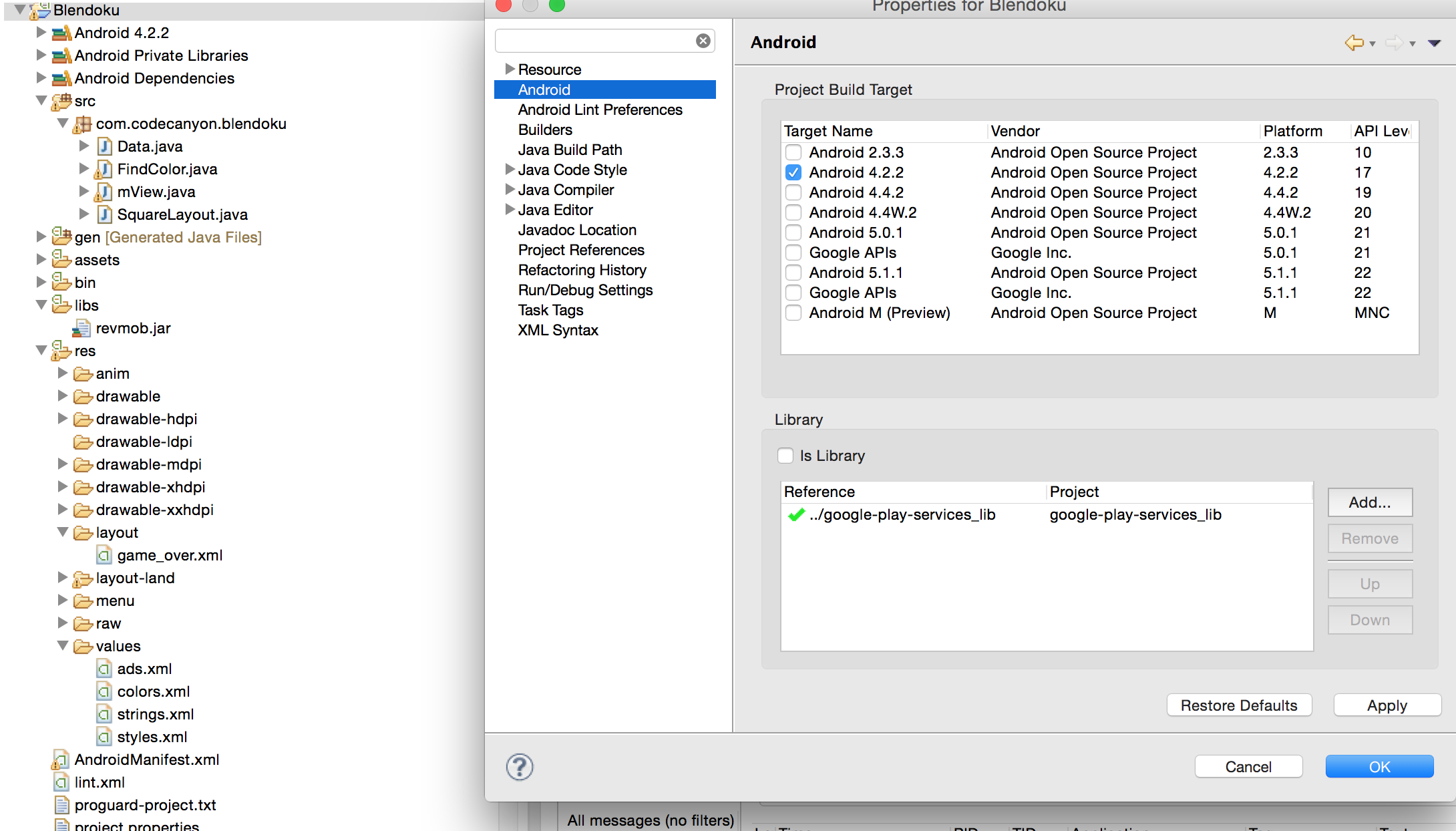
- Open Eclipse > Import > Android > "Existing Android Code into Worksplace" > Next
- Root Directory > Click Browse button & browse the project folder "Blendoku" > Select all 2 projects 'google play services' and 'Blendoku'
- After sucessfully importing the app, Right Click 'Blendoku' project from Package Explorer > Properties > Java Build Path > Order and Export > Check on 'Android Private Libraries' > OK
- Then go to 'Project' Menu > Clean.. > Clean All Projects > OK
- Wait for few minutes until all errors are gone. Ignore any warning appears in 'Problems' tab.
How to change the package name? - top
You can change it easily from Eclipse. Here are the steps:
- Right Cilck 'Blendoku' project from Package Explorer > Application Tools > Rename Application Package > Finish.
How to change app name? - top
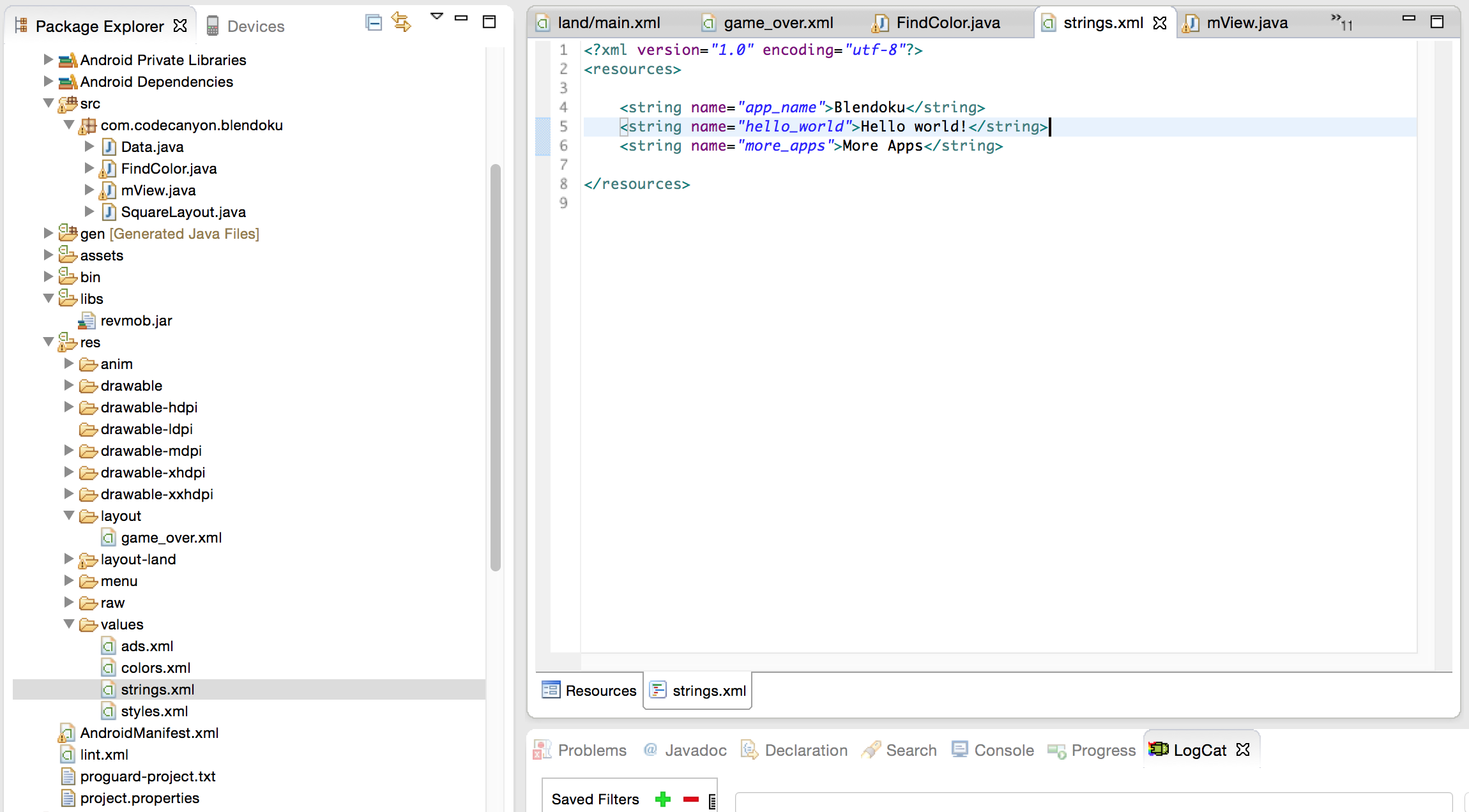
- Open Eclipse > Blendoku > res > values > strings.xml
- Select 'strings.xml' tab next to 'Resources' tab
- Enter your app name inside "app_name" string tag:
<string name="app_name">Blendoku</string>
How to change Admob and RevMov ads id? - top
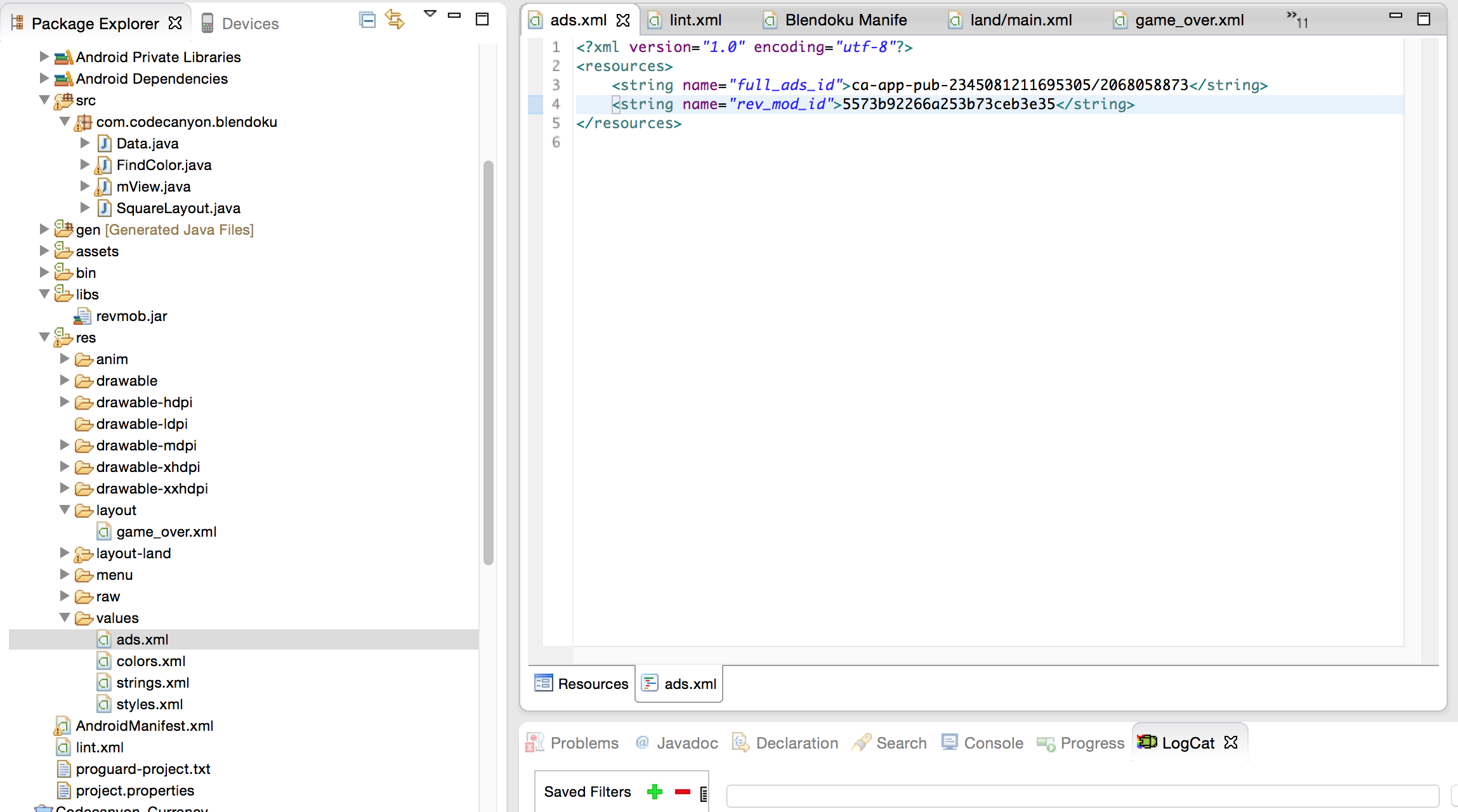
- Open Eclipse > Blendoku > res > values > ads.xml
- Replace old admob IDs by yours Admob ID in full_ad_unit_id(Full Screen Ads)
- Replace old RevMob IDs by yours RevMob in rev_mod_id
Sounds - top
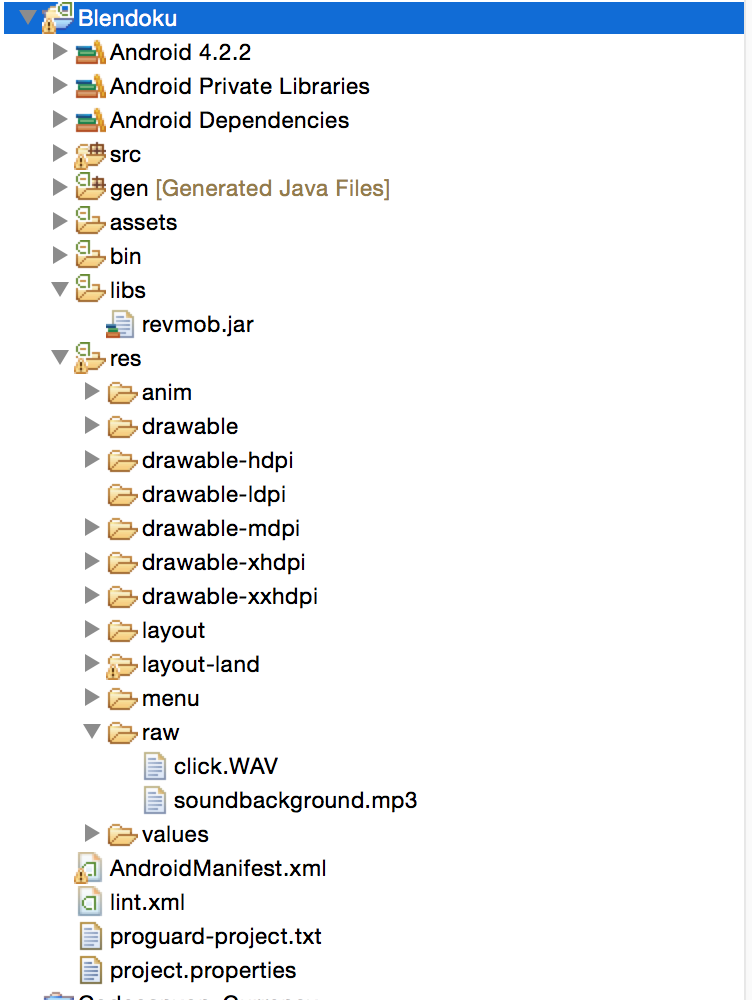
- Open Eclipse > Blendoku > res > raw
- Replace old sound file by your file, please keep the filename as the original
Graphics - top
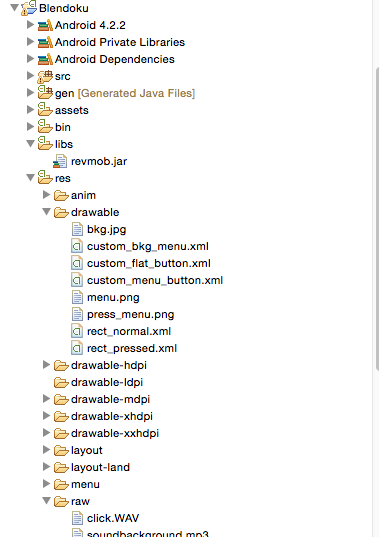
You will find all buttons & station image into assets/img, /res/drawable/ and /res/drawable-hdpi/ folder. Just create your own graphics and replace those files. Create seperate graphics of different device screen sizes & place them into other drawble folders (drawable-mdpi, drawable-ldpi & drawable-xhdpi) with same file name found at drawable-mdpi folder. Check here for more information: Devices and Displays & Supporting Multiple Screens.
App Showcase - top
Once you will publish your app to Google Play or any other Android store, send us your app link. We will happy to showcase your app into our website & CodeCanyon page.
Rating - top
If you like our app, we will highly appreciate if you can provide us a rating of 5. You can rate us from your CodeCanyon Menu > Download page.
Once again, thank you so much for purchasing this app. As I said at the beginning, I'd be glad to help you if you have any questions relating to this app. No guarantees, but I'll do my best to assist. If you have a more general question relating to the apps on CodeCanyon, you might consider visiting the "FAQ / Support" section and asking your question in the "Comments" section at CodeCanyon app detail page.